Jenkins Jobs

In Jenkins, a Job is a task or automated process that Jenkins performs.
It usually contains steps like build, test, deploy, or run scripts whenever code changes or on a schedule.
Types of Jenkins Jobs
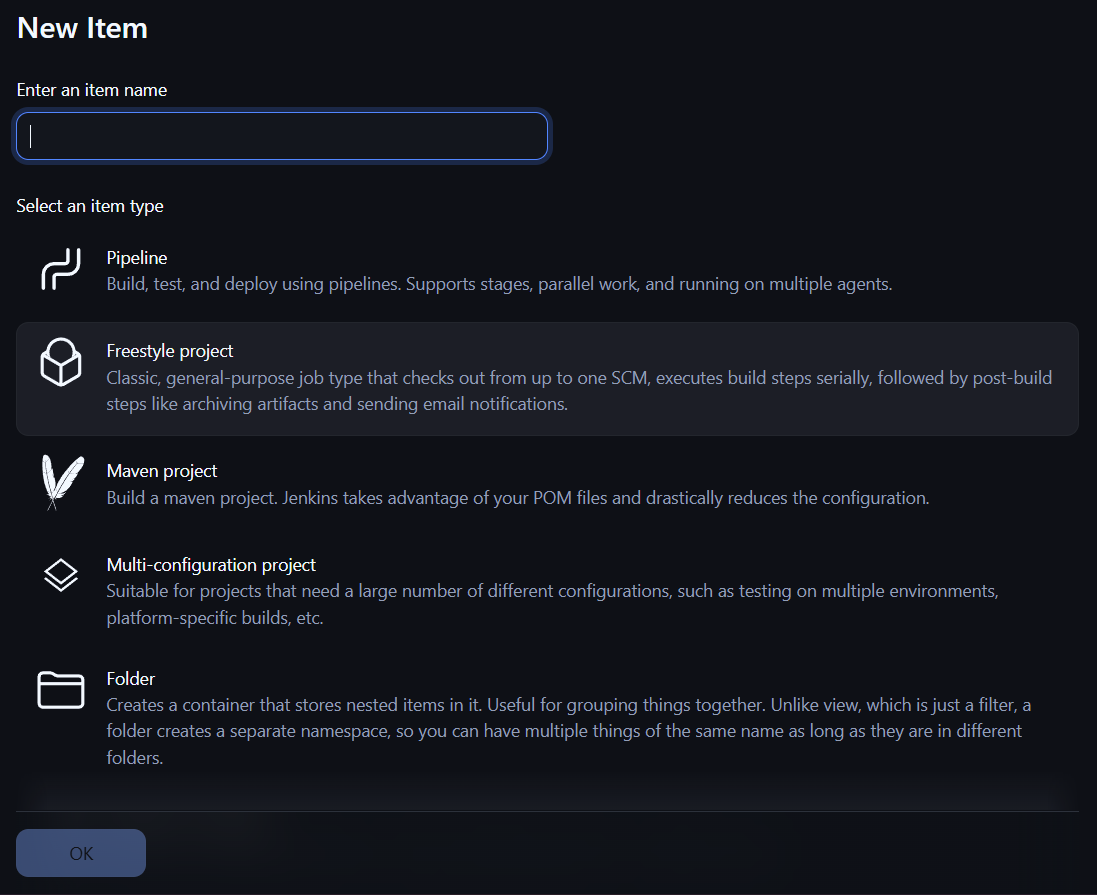
1. Freestyle
It is a type of job that doesn't require any additional installation of tools. In a freestyle project, all the tools are pre-installed while performing the job; we just need to do manual configurations for setting up the job.
Steps to perform java project in freestyle
1. Log in to Jenkins and click on "New Item."
2. Enter the job name and select the job type as "Freestyle."
3. Provide a description (optional).
4. Under Source Code Management, click on GIT.
5. Paste the repository link of the Java project from GitHub.
6. Under the build step, select "Execute Windows batch command" for Windows.
7. Enter the commands to compile and run the Java project.
Example:
To compile: javac filename.java
To execute: java filename.java
8.Click on apply and Save
9.Click on build now
Workspace in jobs
A workspace is a directory where Jenkins stores all the files which is related to job during its execution
Steps to perform maven project in freestyle
Only change in build step
1.Select execute windows batch command
2.Give any maven commands
2. Maven
A Maven Job in Jenkins is a special type of job used to build and manage Java projects using Maven.
Steps to perform job using maven job type ?
Install Maven integration plugin
1. Log in to Jenkins.
2. In the Jenkins dashboard, click on "Manage Jenkins."
3. Click on "Plugins," go to "Available Plugins," and install the plugin called "Maven Integration." 4. Verify that the plugin is installed in "Installed Plugins."
Configure Maven path in the tools
1. In the Jenkins dashboard, go to "Manage Jenkins."
2. Click on "Tools."
3. Go to "Maven" and click on "Add Maven."
4. Provide a name for Maven and add the installation path of Maven installed on Windows.
5. Click on "Apply" and "Save."
Create a job using Maven project
1. In the Jenkins dashboard, click on "New Item."
2. Enter the job name and select "Maven Project."
3. Click "Next" and provide the job description.
4. In SCM, select "GIT" and add the GitHub repository path.
5. In "Goals and Options," specify the goal (e.g., clean package site).
6. Click on "Apply" and "Save."
7. Click on "Build Now."
Setup jenkins in Ubuntu instance
1.Launch one EC2 instance with ubuntu as an OS and instance type as "t2.medium"
2.Connect the instance and install java , maven and jenkins
Commands to install java and maven
sudo apt update
sudo apt install openjdk-17-jdk -y
sudo apt install maven -y
Steps to install jenkins
1.Go to webpage and search "install jenkins in linux"
2.Go to debian/ubuntu and copy the script which has "long term support release"
3.Paste it in EC2 instance and enable and start the jenkins
4.Enable port number "8080" in security groups
5.Copy the public IP and paste it in website (ex: http://:8080)
6.Setup the jenkins and for administrative password copy the path and paste it in EC2 instance using cat command
Command:
sudo cat <adminstrative-path>
7.Click on next and give the credentials and start using jenkins
In Linux while seleeting build step elick on "execute shell"
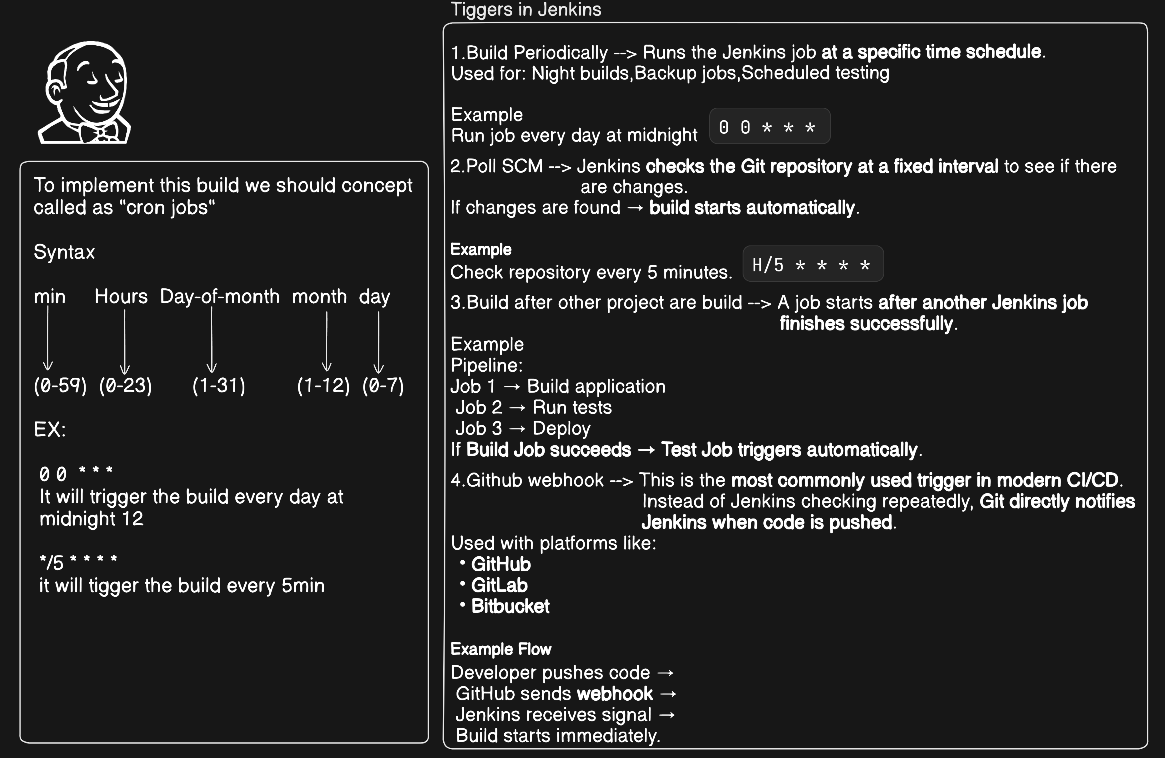
Build triggers in jenkins
3.Pipelines
It is a script to perform sequence of steps to perform task such as building, testing and deploying
We have 2 types of pipeline
1.Declarative pipeline
2.Scripted pipeline
1.Declarative pipeline
Commands to install java and maven
pipeline {
agent any
stages {
    stage('Build') {
        steps {
            echo 'Building Application'
        }
    }

    stage('Test') {
        steps {
            echo 'Running Tests'
        }
    }

    stage('Deploy') {
        steps {
            echo 'Deploying Application'
        }
    }
}
}
It is properly structured and predefined
1.It is easy to use
2.It offers human friendly syntax
This declarative pipeline consist
1.Agent
2Stages
3.Stage
4.Steps
2.Scripted pipeline
It is a type of pipeline where it is more flexible to define CI/CD workflow using "Groovy scripting"
Groovy scripting
It is integrated with java programming language
It offers some programming features like variables, conditional statements, looping statements, function
Syntax:
Node{
stages('')
{
#define the task
}
......
}
to define for loop
for i in var_name
increementing variable
a[ 1 2 3 4 5]
To accessa[0]=1 a[1]=2 a[4]=5
Groovy Scripting example
node {
    def repourl = 'https://github.com/diwyasudarshankaushik/mavenprojeet.qit'
    def stagelist = ['compiletest"package']

    stage('cloning-git-repo') {
       git repourl
     }
    for (i in stagelist){
        stage(i){
                if (i == 'compile'){
                       bat 'mvn compile'
                      }
                if (i == 'test'){
                       bat 'mvn test'
                      }
                if (i == 'package'){
                       bat 'mvn package'
                      }
                 }
               }
             }
Conclusion
Jenkins jobs let you automate builds, tests, deployments, and scripts so changes get validated and shipped reliably.
The Freestyle job is a flexible, easy-to-configure option for simple or ad-hoc builds: you point it at your SCM, configure build steps (e.g., Windows batch commands to compile/run Java), and Jenkins uses a workspace directory to hold job files during execution. It’s convenient for quick setups or non-standard build flows.
The Maven job is purpose-built for Maven-managed Java projects—it integrates with the POM and Maven lifecycle to handle compilation, testing, packaging, and dependency resolution more cleanly and reproducibly.
Choose the job type based on your project’s tooling and complexity: use Freestyle for simple or custom scripts and quick experiments, and prefer Maven jobs for structured Java projects managed by Maven. As needs grow, consider exploring Jenkins pipelines and plugins for more robust, maintainable CI/CD workflows.
